
!!IMPORTANT!! Do not change the arrangement or adjust the text in the column headers of the file. This will cause the file to fail when uploaded.
To add a batch of products to Transact, you need to be in the Compose application. click on the Products tab on the navigation menu.
Click the Batch Import button.
Step 1: Download the batch product template available as a .csv or .xlsx. The templates are also located below.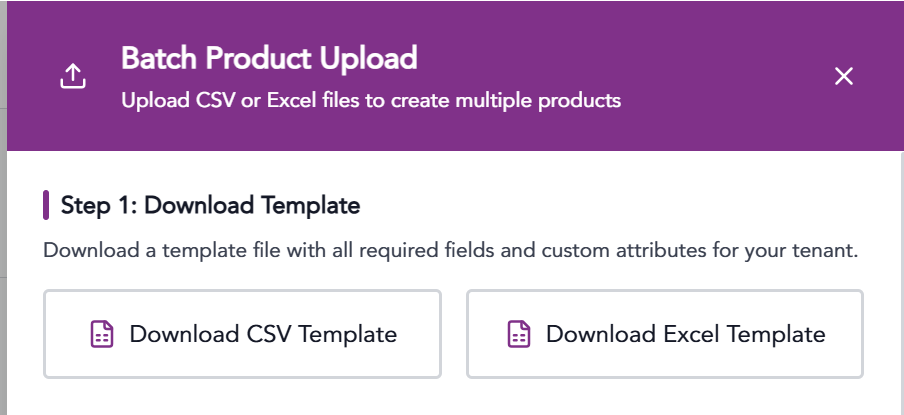
Step 2: Input product data in the row. There is a sample product row. Do not change the arrangement or adjust the text in the column headers of the file. This will cause the file to fail when uploaded.
Step3: Choose how you want the file to be processed.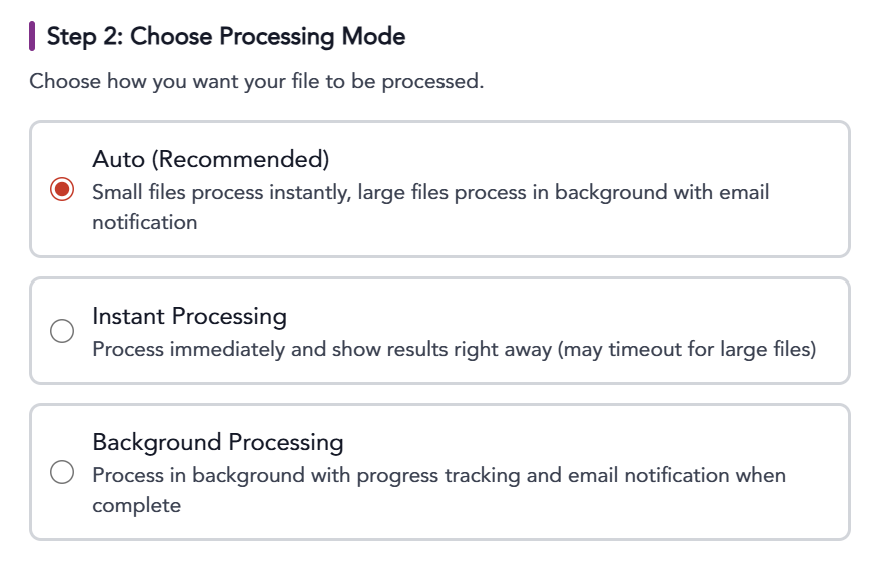 Option 1: Auto. (best for small files that will process instantly) - Larger files will process in the background and will send an
email confirmation when complete.
Option 2: Instant processing - Process immediately and show results right away. (Larger files may timeout)
Option 3: Background Processing (best for larger files) - Process in the background with progress tracking and email notification when complete.
Step 4: Upload your file.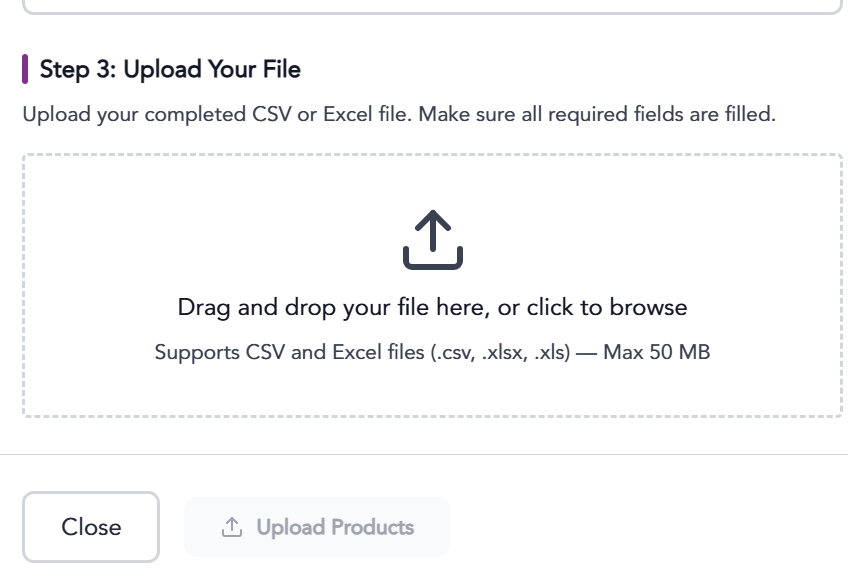
The information provided on this website does not, and is not intended to, constitute legal advice; instead, all
information, content, and materials available on this site are for general informational purposes only.