
To delete an entity to the Trabex Shipment Management System, go to https://console.trabex.io/
Login with your username and password. Your username is your password. If you have forgotten your password, please use the 'Forgot Password' link to start the reset process.
When logged in, click into the Engage application on the navigation menu bar.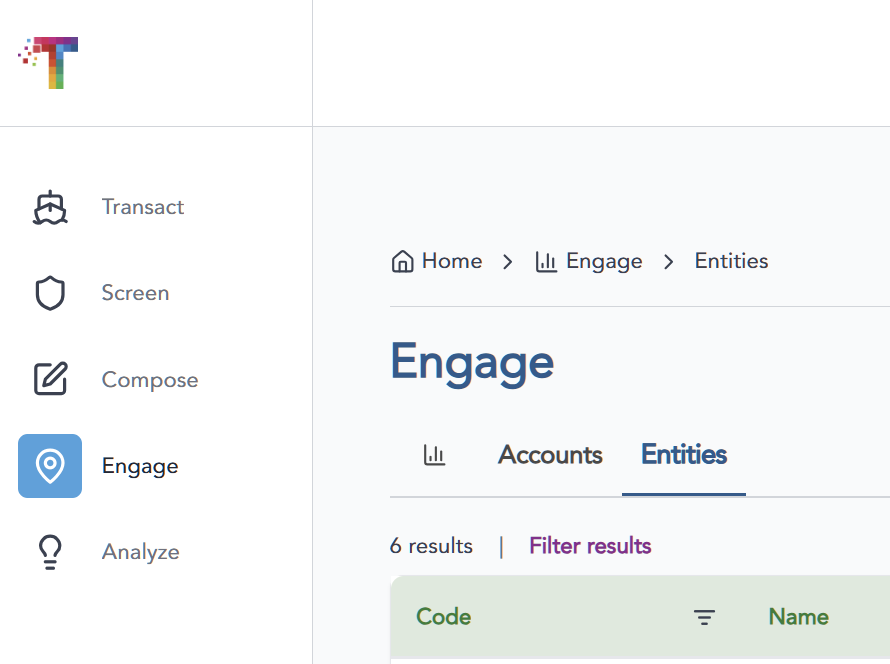
1. Click on the Entities tab.
2. On the Entities screen, there is a Filter Results link above the entities table to search for entities where you can provide a code, partial code, name, active status or role.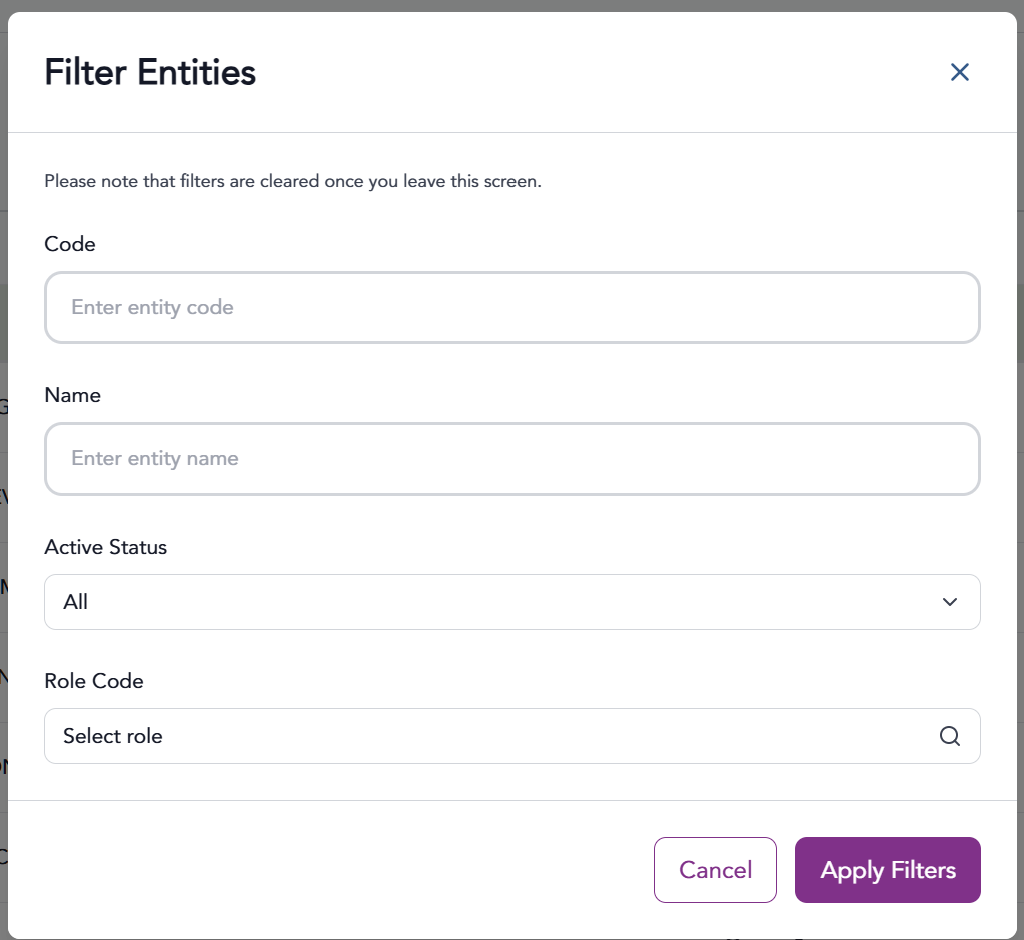
The entity below table shows all entities where you can scroll to the specific entity row. Entities can be deleted either from the Entity table
Deleting from the master Entity table.
1. After the entity has been found, there will be a trash can icon under the Actions header.
2. Click the trash can icon which will prompt for a soft or hard delete of that entity.
Soft Delete - Entity is deleted but all data is preserved and can be restored later.
Hard delete -Entity is deleted along with all related data and cannot be restored.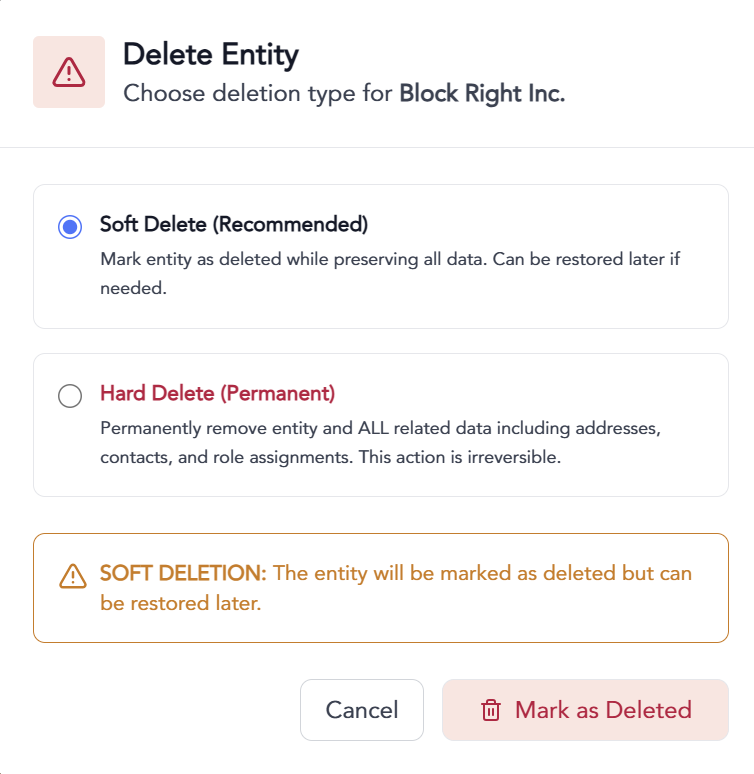
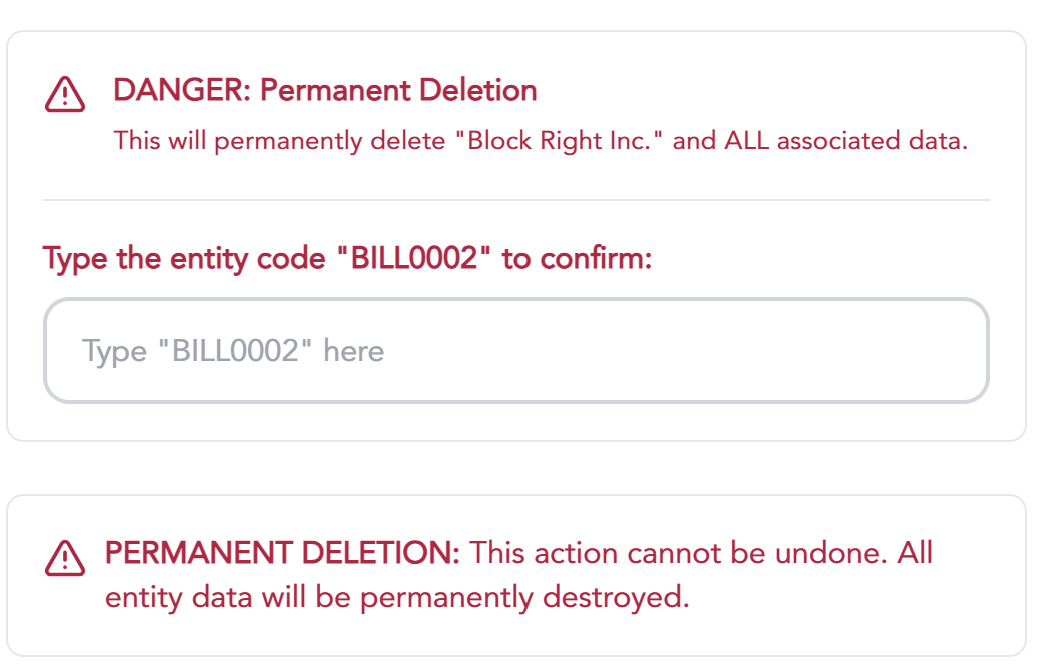
Deleting from the Entity edit screen
Additional entity data can be accessed by clicking an entity from the Entity master table or click on the view details icon under the Actions header.
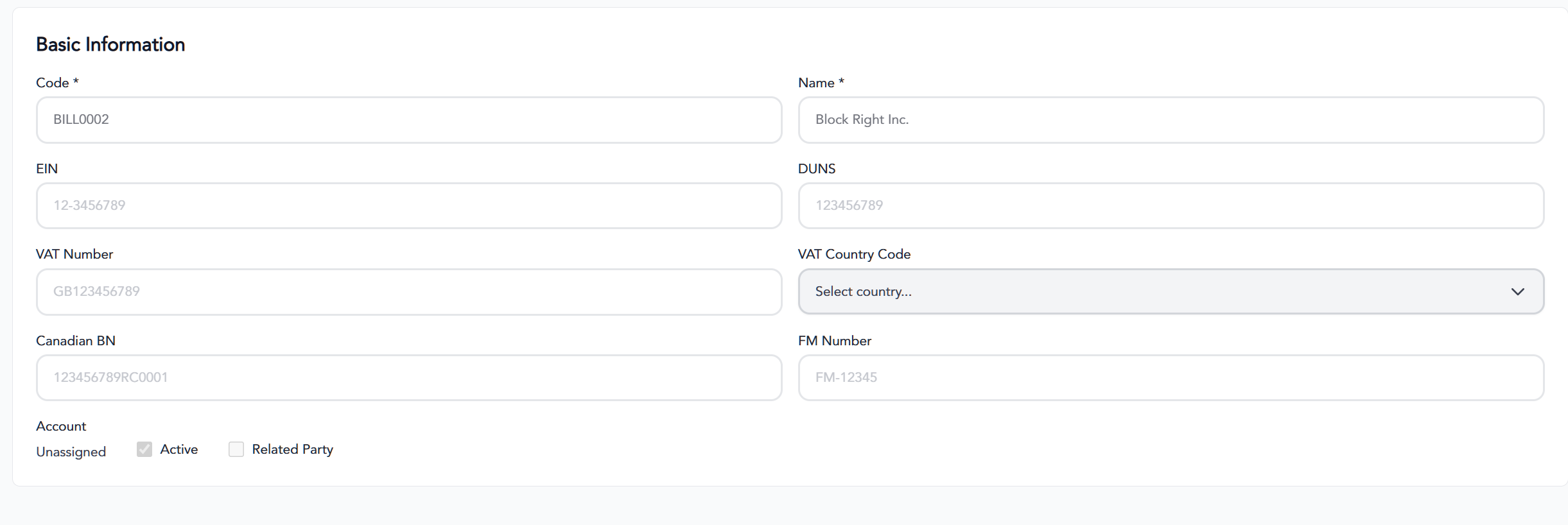
1. To delete an entity from the details screen, click the Delete button.
2. Clicking the Delete button will open the prompt for a soft or hard delete of that entity.
Soft Delete - Entity is deleted but all data is preserved and can be restored later.
Hard delete -Entity is deleted along with all related data and cannot be restored.
The information provided on this website does not, and is not intended to, constitute legal advice; instead, all information, content, and materials available on this site are for general informational purposes only.