
!!IMPORTANT!! Do not change the arrangement or adjust the text in the column headers of the file. This will cause the file to fail when uploaded.
To add a batch of entities to Transact, you need to be in the Engage application.
1. click on the Engage menu item on the left sidebar menu. Then, click on the Entities tab to view the entities table.
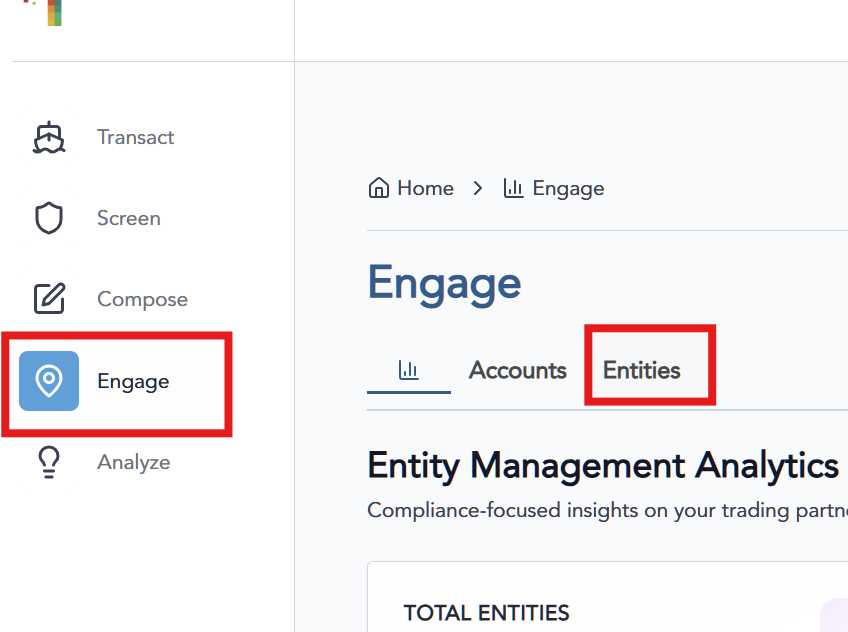
2. On the entities table screen, click on the upload icon.

3. Download the Entities batch template in either .csv or .xls format. These templates are also available below.
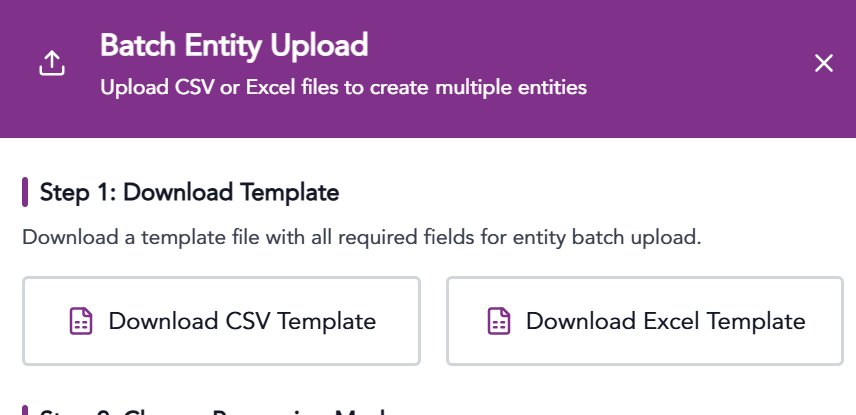
3. Add the entities to the file according to the header rows. There is a sample data row that can be used as an example. Do not change the arrangement or adjust the text in the column headers of the file. This will cause the file to fail when uploaded.
4. Save and select a processing method.
5. Upload the file.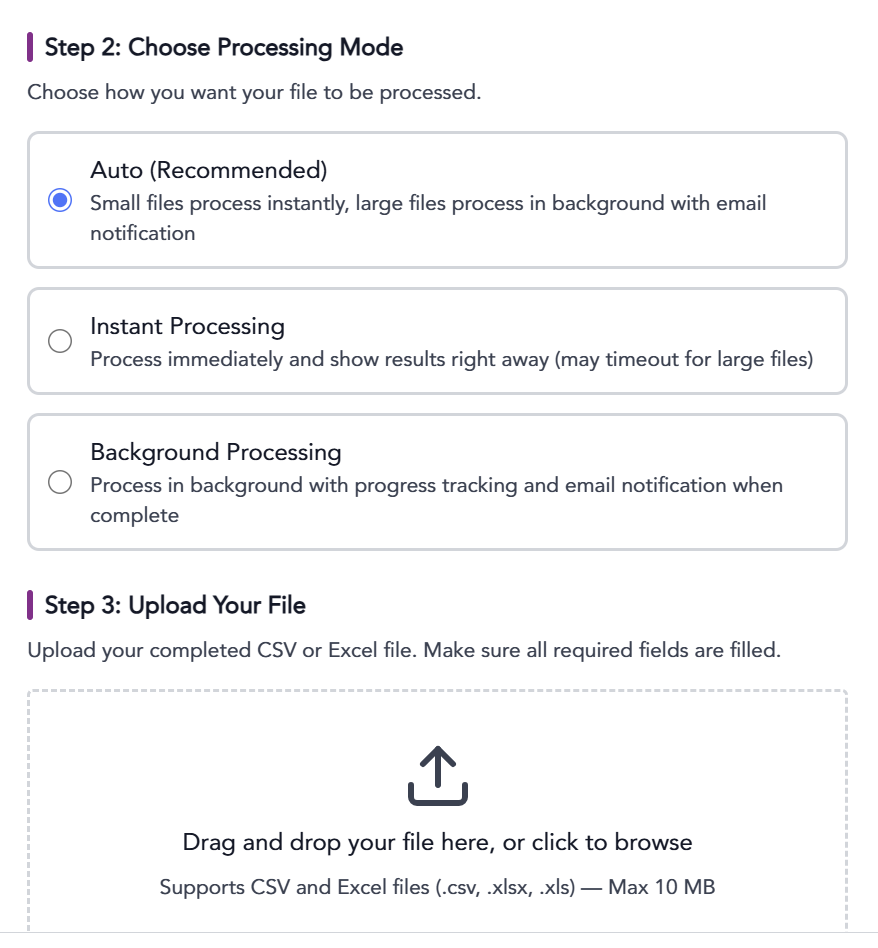 You will see a failure or success message upon upload completion.
The information provided on this website does not, and is not intended to, constitute legal advice; instead, all
information, content, and materials available on this site are for general informational purposes only.