
Trabex Compose uses a Roles and Permission groups to assign what users can and cannot do within the various applications.
Editor | Administrator | Viewer |
Can view and edit most resources, cannot delete or manage admin settings | Full access to all client features and user management | Read-only access across all applications |
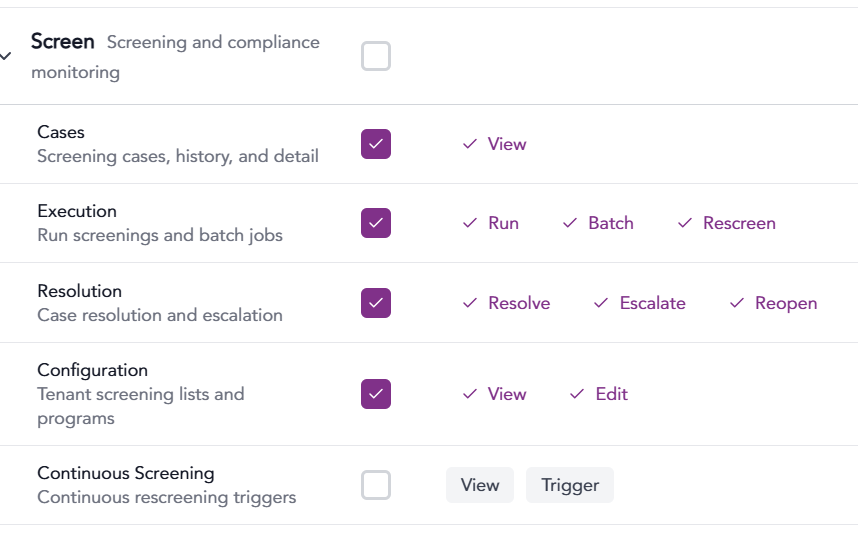 | 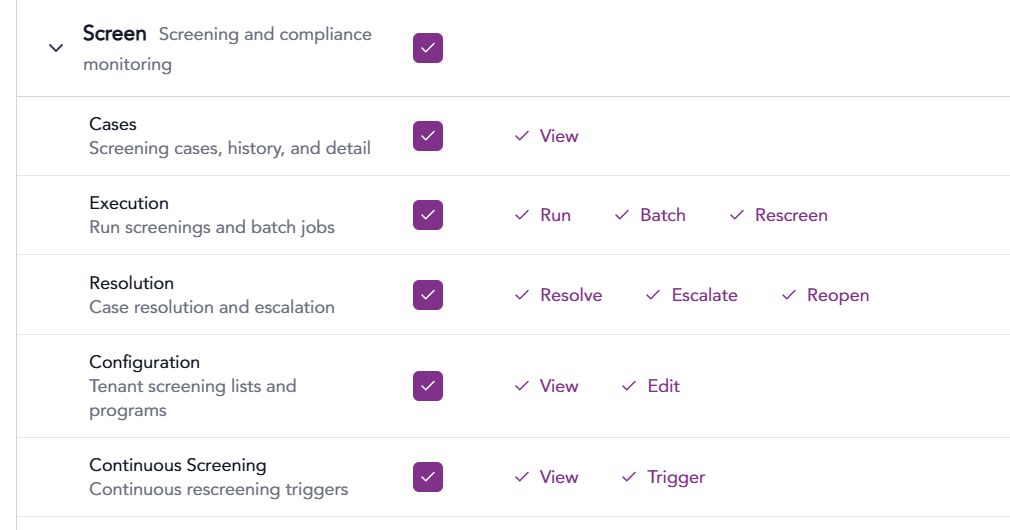 | 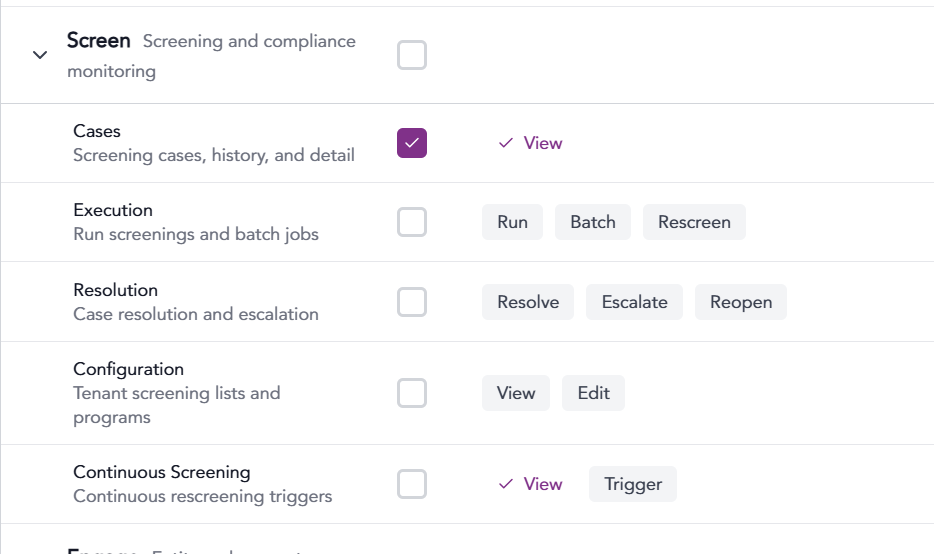 |
These role groups can be adjusted and fined-tuned by checking or unchecking any available option.
Be sure to click the Save Changes button to save any changes.

Setting a new Roles & Permissions Group
1. To create a custom role group, click the + Create Role button. Only administrators can perform this action.
A window will appear with a variety of predefined templates to choose from.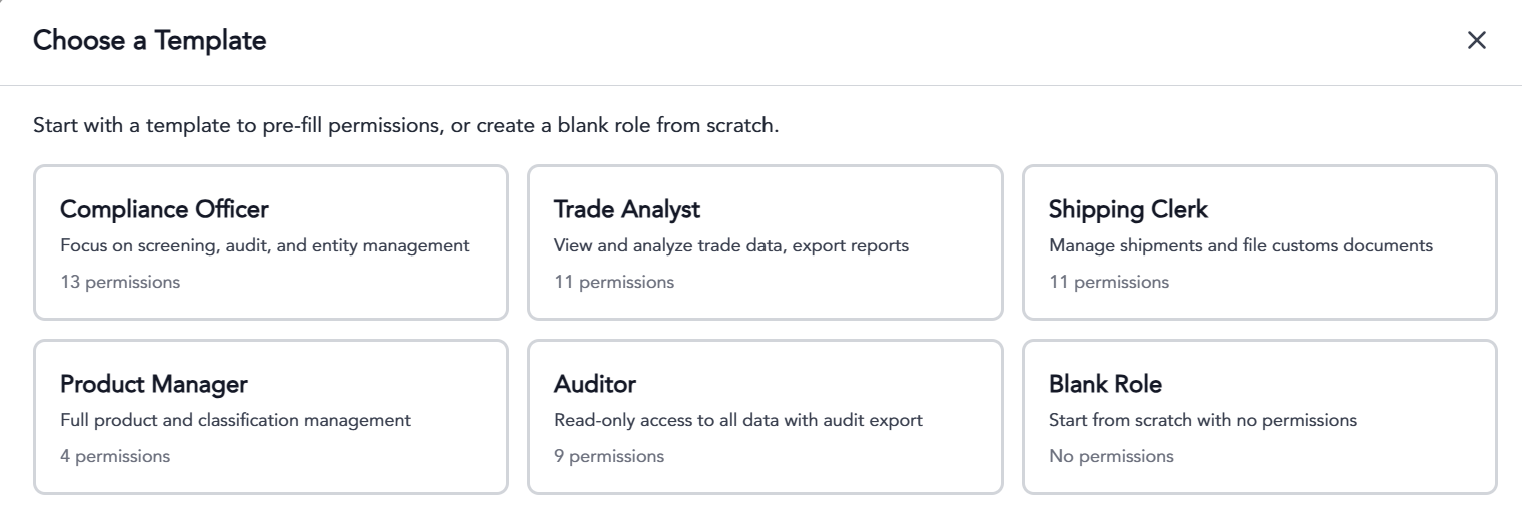
2. Select a template or the Blank Role to start from scratch. The blank role will have no permissions for anything.
3. From any template or the blank role, you can provide a custom name and description.
4. Select or unselect each permission for each Trabex application (Screen, Engage, Compose, Transact, Analyze) for that role.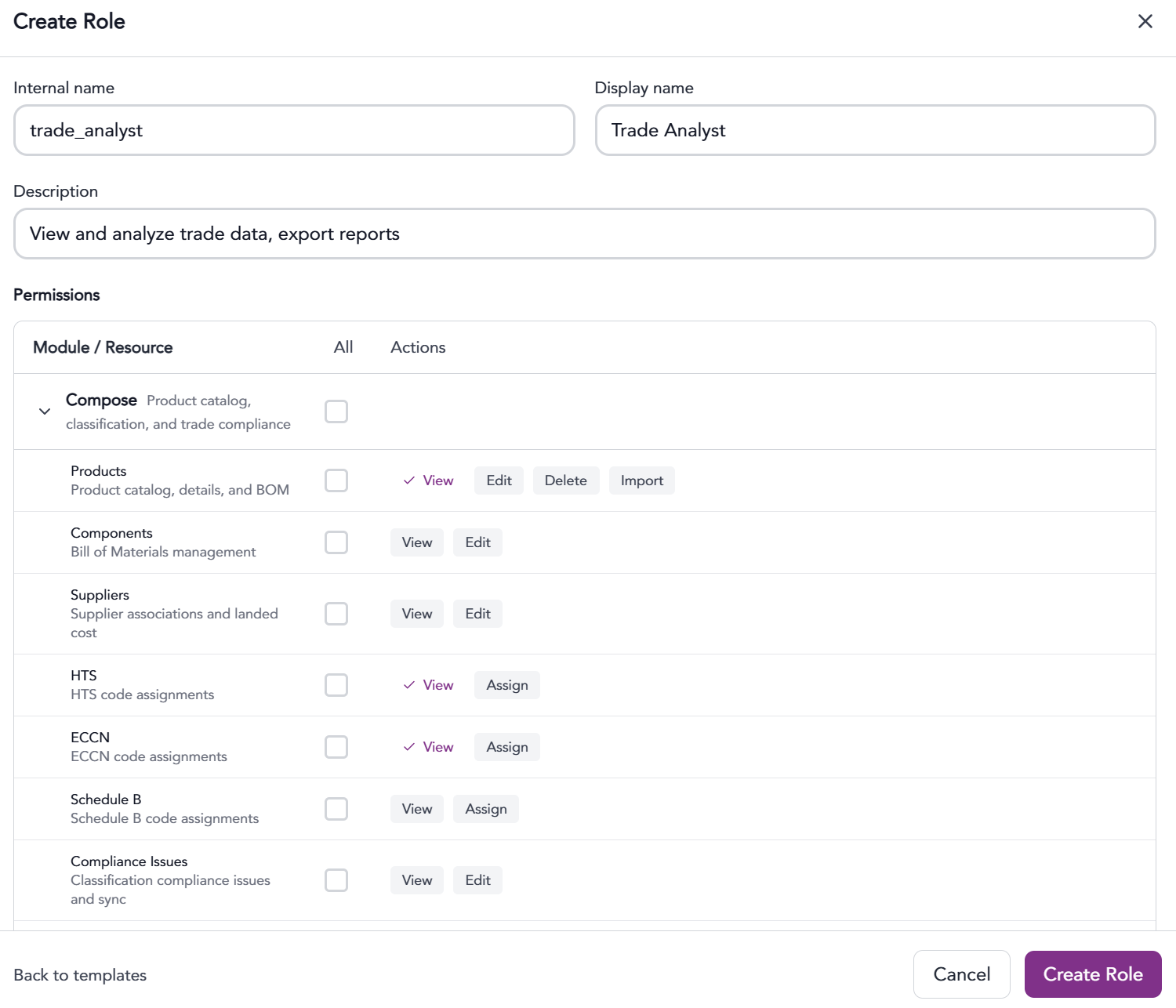
Be sure to click the Create Role button to create the new role.
Once the role is created, you will be able to assign individual users to the roles.
The information provided on this website does not, and is not intended to, constitute legal advice; instead, all
information, content, and materials available on this site are for general informational purposes only.