
The Packages feature in Trabex V3 Transact allows users to define, organize, and manage the packaging associated with a shipment. After adding products to a shipment, users can establish package types, specify package quantities and dimensions, and assign products to individual packages.
Accurate packaging information supports shipment preparation, transportation planning, customs documentation, and the generation of packing lists and other shipping documents.
The packaging process generally includes three activities:
Define Packages: Identify the package types or shipping containers used to transport the goods.
Assign Products: Specify which products and quantities are included in each package.
Manage Marks and Instructions: Record package markings, identification details, and special handling instructions.
Adding Packages to a Shipment
Once products have been added to a shipment, users can create package records to describe how the goods will be packed and transported.
Open the applicable shipment in Transact.
Navigate to the shipment's Packages section.

Click the + Add Package button
Provide all necessary details of the package
Package type
Line number
Packaging identifier
Marks and Instructions
Description of the Content
Dimensions
Weight
Volume
Open the package's product assignment or contents section.
Select the products to be included in the package.
Enter the quantity of each product assigned to that package.
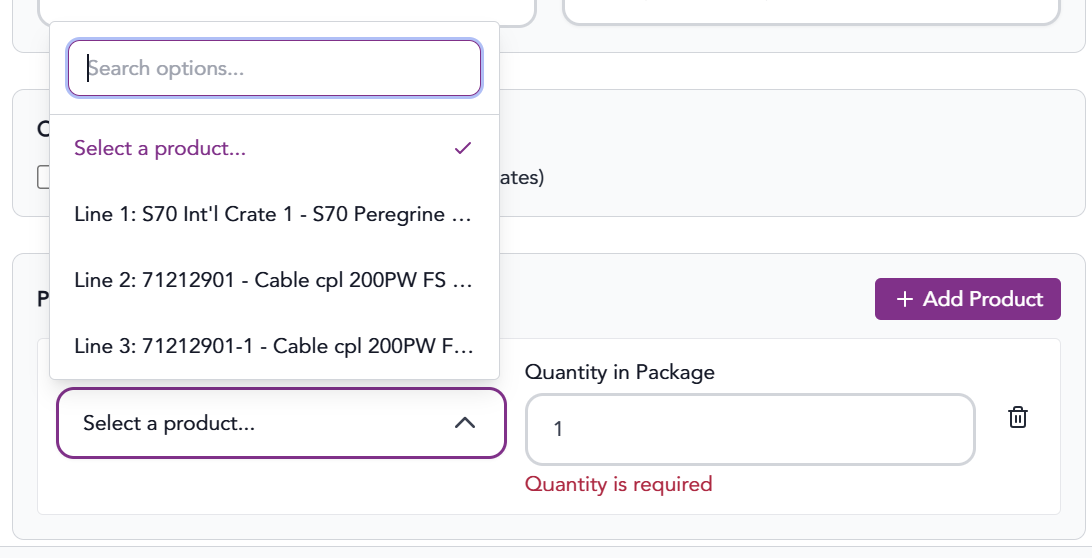
Click Add Package to save.
A single package may contain multiple products, and quantities of the same product may be distributed across multiple packages.
Repeat the process as necessary until the shipment's products have been allocated to the appropriate packages.
Multiple package types can be defined within a single shipment to accommodate different packaging requirements.
Where supported, Trabex automatically calculates total weights and cubic volumes using the package quantities, dimensions, and individual package weights entered.
Note: Available package types and units of measurement may vary depending on the shipment's transportation mode and configuration.
Modifying Package Contents
Users can update package assignments when shipment quantities or packing arrangements change.
Click the Edit icon on an existing package.

Edit package details as necessary
Adjusting Product Quantities
To modify the products assigned to a package:
Select the package containing the products to be updated.
Locate the Products in this Package section.
Update the quantity of the applicable product
Click the delete icon to delete this product from the package.
Clickup Update Package to save the changes.
Changes to package contents should be reviewed to ensure that the total quantities assigned across all packages remain consistent with the shipment's product quantities.
Removing Packages
Package details may need to be updated when packaging requirements change or when packages are added or removed during shipment preparation.
Open the shipment's Packages section.
Click the delete icon on the package row.

The information provided on this website does not, and is not intended to, constitute legal advice; instead, all information, content, and materials available on this site are for general informational purposes only.